Group Scheduling for Remote Teams: A Complete Guide for 2026
Remote work has made finding a meeting time that works for everyone feel impossible. This guide covers strategies, tools, and best practices for scheduling across time zones.
The Remote Scheduling Challenge
Remote teams face unique scheduling obstacles:
- Time zone chaos — A "reasonable" meeting time might be 3 AM for someone
- Calendar fragmentation — Different tools, different calendars, incomplete visibility
- Async vs sync pressure — When to meet live vs. communicate asynchronously
- Meeting fatigue — Zoom burnout is real
- Cultural differences — Work hours and expectations vary globally
Strategy 1: Find Your Overlap Window
Every distributed team has a "golden hour" — the time window when most or all members can meet during reasonable work hours.
How to Find It
- Map your team's time zones — List each member's local time zone
- Define "reasonable hours" — Typically 8 AM to 6 PM local time
- Find the intersection — Where do reasonable hours overlap?
Example:
- San Francisco (PST): 8 AM – 6 PM
- New York (EST): 11 AM – 9 PM PST → Overlap: 11 AM – 6 PM PST
- London (GMT): 4 PM – 2 AM PST → Overlap: 4 PM – 6 PM PST
- Golden hour: 4 PM – 6 PM PST
When There's No Good Overlap
For truly global teams (Americas + Europe + Asia), there may be no window that works for everyone during normal hours. Solutions:
- Rotate meeting times — Share the inconvenience equally
- Split into regional groups — Smaller meetings by region
- Go async — Record meetings for those who can't attend
- Use dtElection — Let the team vote on which times work best
Strategy 2: Democratic Scheduling with Polls
Instead of the manager picking a time, let the team decide collectively.
Why It Works
- Reveals true availability — People vote honestly about their constraints
- Builds buy-in — Team members feel heard
- Discovers unexpected options — Sometimes odd times work better than expected
- Reduces resentment — No one feels singled out for inconvenient times
How to Run a Scheduling Poll
1. Create the poll
Use dtElection to create a poll with multiple time options across different time zones.
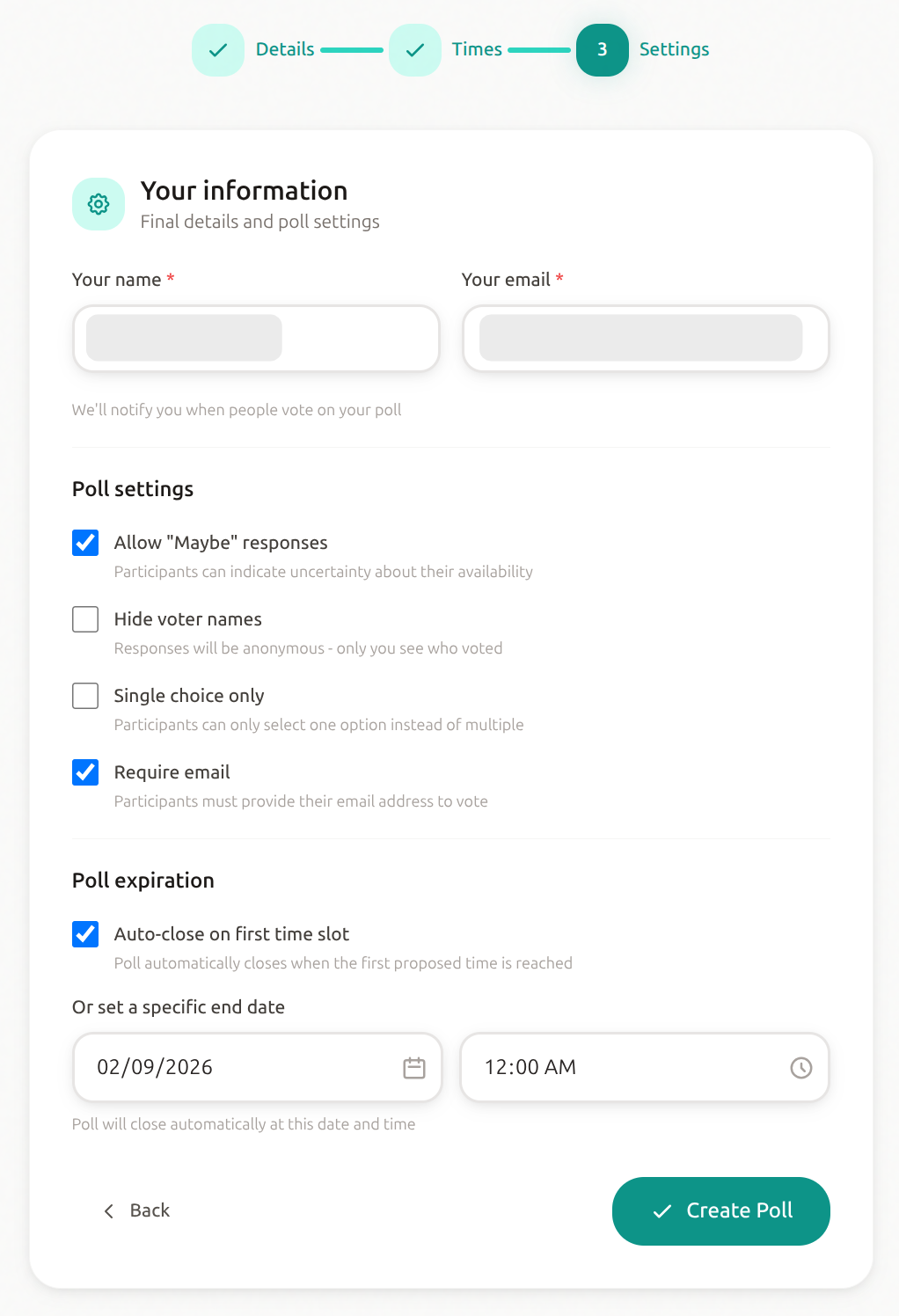
2. Enable the right settings
- Maybe option — Let people indicate tentative availability
- Anonymous voting — Remove peer pressure (especially useful if the boss is in the poll)
- Show time zones — dtElection automatically displays times in each participant's local zone
3. Share with context
When sharing the poll, explain:
- What the meeting is for
- How long it will last
- That you're trying to find the best time for everyone
4. Analyze results
Look for:
- Times with the most "yes" votes
- Times with zero "no" votes
- Patterns (does the team prefer mornings or afternoons?)
Strategy 3: Recurring Meeting Optimization
For regular meetings (weekly standups, monthly all-hands), optimization matters more because you're repeating the cost.
Audit Your Recurring Meetings
- List all recurring meetings for the team
- Note the time and who attends
- Identify who's inconvenienced (early morning, late evening)
- Consider rotation or async alternatives
Rotation Strategy
For teams where no time is perfect for everyone:
| Week | Meeting Time | Early/Late for |
|---|---|---|
| 1 | 9 AM PST | London (evening) |
| 2 | 5 PM PST | Singapore (morning) |
| 3 | 8 AM PST | NYC (early morning) |
| 4 | Async | Everyone catches up |
Async Alternatives
Not every "meeting" needs to be synchronous:
- Status updates → Slack/Teams post with thread
- Information sharing → Recorded video or Loom
- Brainstorming → Async doc collaboration
- Decisions → dtElection poll with discussion
Save synchronous time for:
- Complex discussions
- Relationship building
- Sensitive conversations
- Real-time collaboration
Strategy 4: Calendar Visibility
Many scheduling problems come from incomplete calendar visibility.
The Problem
- Team members use different calendar systems
- Personal events marked as "busy" without context
- No way to see overall team availability
Solutions
1. Shared Team Calendar
Create a team calendar showing:
- Recurring meetings
- PTO and holidays
- Focus time blocks
2. Calendar Integration with Scheduling Tools
dtElection integrates with Google and Microsoft calendars to help you:
- See your own availability when voting
- Avoid proposing times you're busy
- Make informed decisions
3. "Office Hours" Blocks
Have team members publish their preferred meeting hours:
- Block focus time as "Do Not Disturb"
- Mark available slots for meetings
- Respect time zones in the naming
Tools for Remote Team Scheduling
For Group Polling
dtElection (recommended)
- Privacy-focused, no ads
- Time zone aware
- Anonymous voting
- Location support for hybrid events
- dtelection.com
Doodle
- Well-known, widely used
- Has ads on free tier
- Premium for advanced features
When2meet
- Free and simple
- Dated interface
- Poor mobile experience
For 1-on-1 Booking
- Calendly — Let people book time on your calendar
- Cal.com — Open-source Calendly alternative
- SavvyCal — Overlay calendars for mutual availability
For Calendar Management
- Clockwise — AI-powered calendar optimization
- Reclaim — Automatic scheduling for habits and tasks
- Motion — AI task and calendar management
Best Practices for Remote Scheduling
Do's
- Poll early — Give people time to check their schedules
- Provide context — Why are we meeting? How long?
- Respect time zones — Never assume everyone is in your zone
- Use the "maybe" option — Tentative availability is valuable information
- Consider async — Ask if you really need a meeting
- Document the decision — Post the final time to Slack/email
Don'ts
- Don't schedule over lunch — Respect meal times across zones
- Don't always pick your convenient time — Rotate the inconvenience
- Don't require cameras for early/late calls — Be understanding
- Don't schedule back-to-back — Leave buffer time
- Don't surprise people — Give advance notice for time changes
Template: Running a Remote Scheduling Poll
Here's a template for running an effective scheduling poll:
Poll Title: Q1 Planning Session
Description:
We need to find a 90-minute block for our Q1 planning session. Please mark all times you're available. I've included options across different time zones — we'll pick the time that works for the most people.
Time Options:
- Tuesday 9 AM PST / 12 PM EST / 5 PM GMT
- Tuesday 4 PM PST / 7 PM EST / 12 AM GMT+1
- Wednesday 8 AM PST / 11 AM EST / 4 PM GMT
- Wednesday 3 PM PST / 6 PM EST / 11 PM GMT
- Thursday 10 AM PST / 1 PM EST / 6 PM GMT
Settings:
- Enable "Maybe" option
- Enable anonymous voting (optional)
- Set deadline for voting
Follow-up Message:
Thanks for voting! We had the most availability on [chosen time]. I've sent calendar invites — let me know if you have any conflicts.
Conclusion
Remote team scheduling doesn't have to be painful. With the right strategies and tools:
- Find your overlap window for regular meetings
- Use polls to make scheduling democratic
- Optimize recurring meetings to share inconvenience
- Improve calendar visibility across the team
- Default to async when synchronous isn't necessary
The key is treating scheduling as a team problem, not an individual burden.
Ready to schedule your remote team more effectively?
Free, private, and built for distributed teams. Create your first poll in under a minute.
Create a Poll